

“Why is my website slow?” is a really common question, and one I get asked a lot.
The answer depends on a few different factors, but the same problems come up again and again. The good news is that a lot of them are very simple to fix, with a little bit of time and effort.
It’s worth doing. People won’t wait around for a slow website, especially on their phones, and Google takes speed into account when it decides where to rank your site. There’s more on that in What is SEO and why do I need it?
Is your hosting up to the job?
In some situations, your web hosting can be the biggest factor of all. Hosting is where your website lives: a computer called a server, which sends your pages to each visitor.
Say you’re running WordPress on shared hosting, where your website shares a server with lots of other sites, and you’re only paying a few pounds a month for it. If you’re getting a decent amount of traffic, your hosting may simply not be up to what you’re asking it to do.
Fortunately, there are lots of options for upgrading, and they don’t all have to be expensive. For a typical small business website or blog, the basic plans from hosts such as Krystal and Hostinger are perfectly capable, at around £5 to £10 a month. If you run an online shop, or your website does more than show pages, such as taking bookings, a plan at around £20 to £30 a month gives you a lot more power.
When you compare prices, check what a plan costs when it renews, too. The cheapest deals often mean paying for a few years upfront, and the price goes up after that.
Are your images too big?
The second biggest problem I see is large images that haven’t been optimised for the web. Images can be absolutely massive: 5, 10, even 20 MB. A photo straight off a phone camera is often several megabytes on its own.
That doesn’t sound like a lot. But add four or five of those to a page, then try to load it on a phone with a weak 4G signal, and it can really slow things down. Ideally, an image should be no more than about 100 KB, so a 1 MB image is ten times bigger than it needs to be.
Fortunately, there’s lots we can do to sort this out.
- Resize them. A photo 3,000 pixels wide by 2,000 high can be cut down to the size the page actually needs, perhaps 1,000 by 500.
- Compress them. Images contain lots of information we don’t need to display them on the web. There are some really good free compression tools, and I highly recommend TinyPNG. It will often make an image 40 to 80% smaller.
Those two changes, resizing and compressing, can usually do everything you need.
Websites can also use some clever tricks to give each screen an image of the right size. If I’m looking at a website on my phone, the image doesn’t need to be as wide as one for a big computer screen, because my phone screen isn’t that wide.
Is your website downloading too much?
When someone visits your website, their browser doesn’t just download the page they see. It downloads lots of other files at the same time: images, styles, scripts and all sorts of other things that make the page look and work the way it does.
Sometimes there’s a lot of this stuff, and not all of it is needed. If you’re using a system like WordPress, it’s really easy to end up with what we call bloat: hundreds and hundreds of files downloading on every page, many of which aren’t necessary. With a bit of care, a lot of that can go.
On a WordPress website, the first thing I do is go through the list of plugins (the add-ons that give WordPress its extra features) to see which ones can be removed, or safely replaced with a little custom code. Lots of plugins do very little that a few lines of code can’t do.
Then I look for the biggest offenders, which are usually:
- Custom fonts. Every typeface your website uses is another download, and often several, one for each style such as bold or italic.
- Chat widgets, the chat bubbles in the corner of the screen, which can load a surprising amount behind the scenes.
- Tracking scripts, such as Google Analytics, which tell you how people use your website.
These are often added by a plugin, and not always in the most efficient way. I’ve seen websites loading Google’s tracking scripts five or six times over, from different plugins and bits of code.
I also look at how much of the website’s styles and scripts are actually being used, and whether any of them are being loaded more than once. Two more things are worth a look:
- Files that load on every page but are only needed on one, such as the scripts for a contact form.
- Embedded videos and maps. A YouTube video or a Google map loads a lot in the background, even if nobody presses play. A website can show a picture of the video instead, and only load the real thing when someone clicks on it.
What is caching, and will it help?
Normally, every time someone visits a page, the server works out exactly how it should look, from scratch. Caching saves a ready-made copy of the page instead. The next time a visitor’s browser asks for it, it’s there, ready to go.
Big global services such as QUIC.cloud and Cloudflare can cache your website for you, and there are other layers of caching you can add to your website as well.
Handled correctly, caching can be a massive performance boost. But as always, there are complications. If you run an online shop, or your website has logins, caching has to be set up with care, so that nobody sees a page meant for someone else, such as another customer’s basket.
How do I check my website’s speed?
Google has a free tool called PageSpeed Insights. Type in your web address and it tests the page, then gives it a score out of 100 for phones and another for computers, with a list of what’s slowing it down.
Aim for 90 or above, which Google counts as good. A well-built website can often reach 100, but there’s no need to chase the last few points. Anything under 50, Google counts as poor.
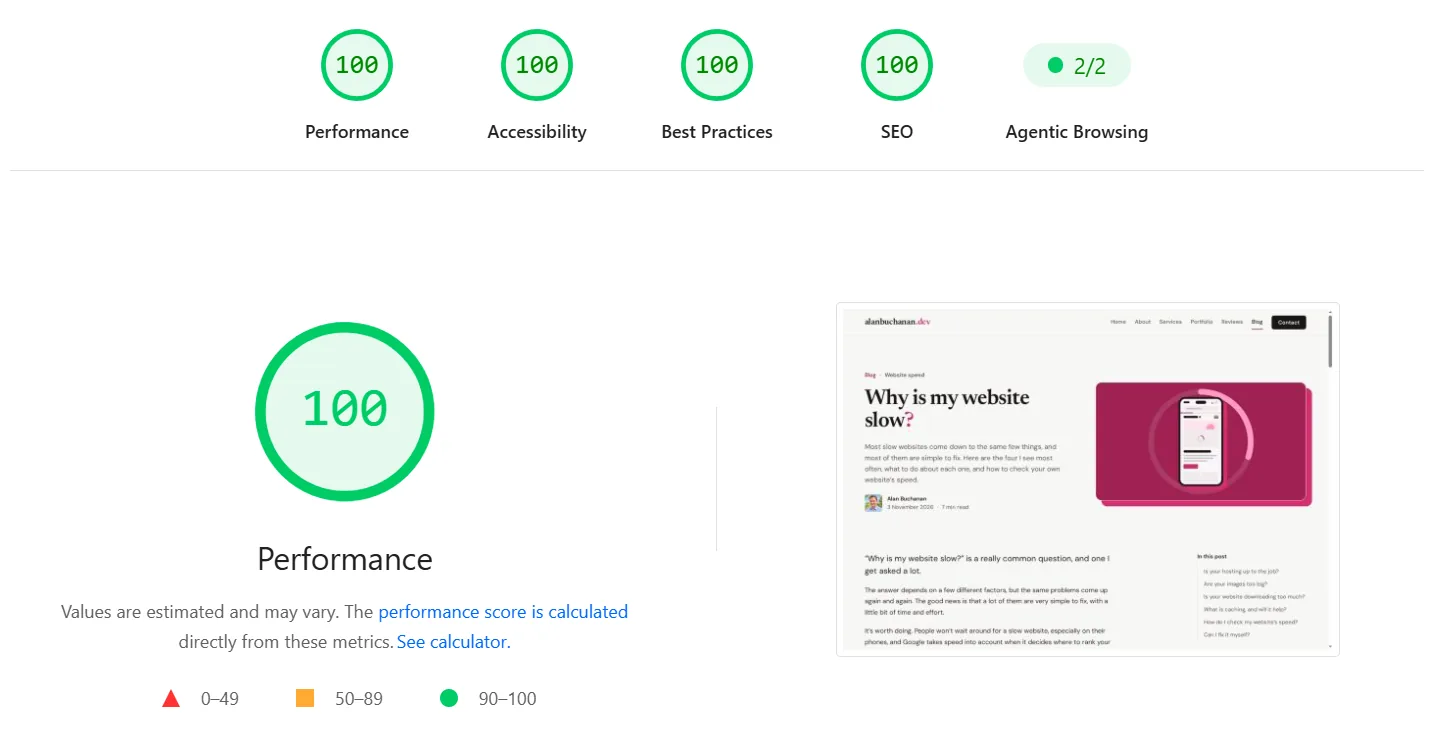
Fixing the images and adding caching can make a huge difference on their own. For one client, I took their PageSpeed score from the low 40s into the 90s with just those two changes.
The number is only a guide, though. If a page loads quickly for you, even on a poor internet connection, that can matter more, because it shows your website will work for your visitors. That’s closer to what Google looks at, too. It doesn’t rank your website on the score itself, but it does take into account how quickly your pages load for real visitors. If your website gets enough of them, PageSpeed Insights shows how it’s doing for them at the top of the report, under “Core Web Vitals”.
In short
Most slow websites come down to the same four things: hosting that isn’t up to the job, images that are too big, too many files to download, and no caching. Anyone can compress their images, and a developer can help with the rest.
Can I fix it myself?
Some of it, yes. Anyone can compress their images using TinyPNG. You don’t need to be technical to do that.
The rest of the changes are probably best left to a developer. There are lots of WordPress plugins that promise to boost your speed, and they can help. But every website is different and can need a different approach, so a plugin on its own won’t always make the difference you’re hoping for.
That’s where I come in. If you’d like me to look at yours, my website audit checks its speed along with its SEO, accessibility and structure. It costs £750, fixed, and within a week you get a plain-English report setting out what to fix. And when I look after a website, I keep checking that the changes we make along the way aren’t slowing it down.
Send me your web address and I’ll tell you whether an audit would help.